
Choosing Divi 5
There's been so much buzz around Divi 5 that you most probably know the reasons why you should be starting a new website with Divi 5 instead of Divi 4. One thing that will surely make your life easier is the new Variable Manager that Divi 5 brings.
If you've been using Divi for some time, you may be accustomed to what Divi 4 has given us. I still like it, and most of my websites using Divi will continue using it for some time. But Divi 5 is fundamentally different, and that's the one point you need to consider when deciding.
Divi 4 is not being activelly developed any more
While it will continue to be supported for now, there are no new features coming out. What you have, you have. Since there are so many 3rd party tools available, most Divi users have built themselves some sort of tools collection, whatever solves their problems and satisfies their needs. This will all continue to work for a forseable future.
Divi 5 is the future
Divi 5, on the other hand, has just entered the Beta phase and the full version is expected sometime within Q1/2026. It's a whole new animal, I can tell you that, and learning it will take some time, as learning Divi 4 did. Ok, probably less, especially if yuo have entered the Divi world as a complete newbie. But the learning curve is here, especially because of some new principles that change how Divi handles everything.
Should I use Divi 5?
While Elegant Themes encourage using Divi 5 for new websites (logical - it's public testing for them), you must be aware that not everything runs smoothly yet. As "Beta" suggests, it's not a completelly finished product, and errors are to be expected. So my advice would be really short.
If you plan a "simple" website, go for it. Simple, within the context, means using primarily Divi supplied modules, without 3rd party tools you may be using with Divi 4. The reason is simple - the simpler the website, the smaller the chance of running into eventual incompatibilities.
If you're about to develop a complex website, using Woocommerce and several 3rd party extensions to fulfill specific needs, be careful. There's a chance that the next Beta update will ruin your work somehow, becase as I said, the platform is still being developed.
But in any case, you should create a local installation (using WAMP or a similar system) and play with Divi 5. Because sooner or later, Divi 4 will be completelly out of support, which will eventually bring problems regarding compatibility and safety. Basically, you have ho choice.
First things to do when starting a new website with Divi 5
When you install Divi 5 (Beta or not), there are some things you should start with, because they will make your life much easier.
There are certain settings that you'll have to prepare boferehand, like global colors and fonts, and there are things you can add as you go, like global strings for instance.
In any case, take some time and define the main settings BEFORE you start building your website. It really pays off.
How to set up variables in Divi 5
The Divi 5 Variable Manager is accessible only within the Visual Builder interface. To access it, I suggest the following steps.
- Install Divi 5
- Create a new page - name it whatever you want, you can delete it later
- Edit the page with Divi 5 Visual Builder
- Enter the Variable Manager and input all the settings you need
- Save the variables and refresh the page
As a general guide, Colors and Fonts should be set up before you do anything else. Other variables are more of a functional nature and you can set them later, when you need them. Keep in mind you can change any variable at any time, changing all the content relying on it, so you have room to adapt later. But it really helps to have the basics set up in order to form the design easier.
Variable Manager: Setting default values
One thing Divi 5 introduced is something called Variable Manager. If you've done some CSS work before, you're most probably aware of possibility to create certain variables you can use inside your system. If not, just imagine this.
For all the pages within a website to look consistent, you'll need to make them similar - they'll have to use the same basic colors, for instance. You can do it "the old way", using Google Docs or similar to track down every color used and pasting the hex codes where neccessary. Do you really want to use that when you have the system in place that makes this really simple?
All you need to do is define your basic colors, as many as you need, once - all inside the Variable Manager. You can then use them whereever these colors are needed. And if you decide to change one or two, you do it inside the Variable Manager ONCE. After refreshing the page, all modules using them will adopt the new color. Easy-peasy.
There are some different options inside the Variable Manager to set up. The logic is the same across the board - you have to name your variable (only you can see the name) and define its value. Then, use it whereever it makes sense.
Numbers
Here you can define anything that is a number per se. These can be font sizes, spacing defaults like paddings and margins, or similar.
Example
Here's an example of defaulr font sizes used on this very website at the moment of writing.
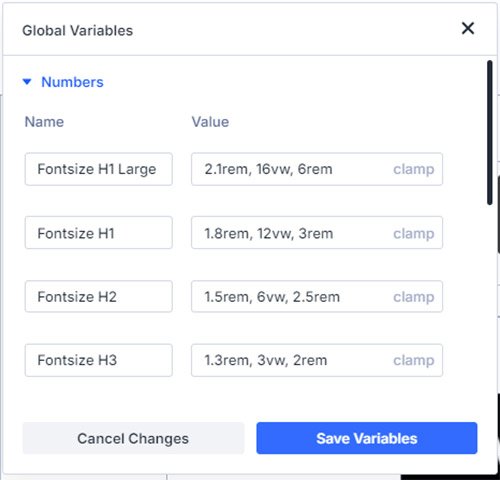
Please know that these settings don't neccessarily make sense. They're actually a living proof that you can use anything you want inside the Variable Manager.
Text
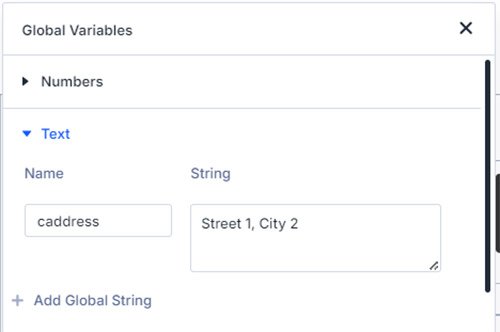
You have an address in the footer? And you maybe use it inside some other pages?
When you change it (for whatever reason), you have to change it everywhere. Well, not any more. You can simply define it as a Global String inside the Variable Manager and upon changing it will change where this variable is used. Global strings can be used for any text variable and displayed within any module supporting text fields.
Images
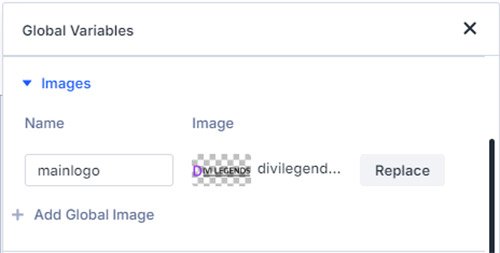
The same applies to images. You can define certain images you use frequently, like logos or icons, and use them inside the dynamic fields that support images.
Here's a logo defined that I can use anywhere on the site.
Links
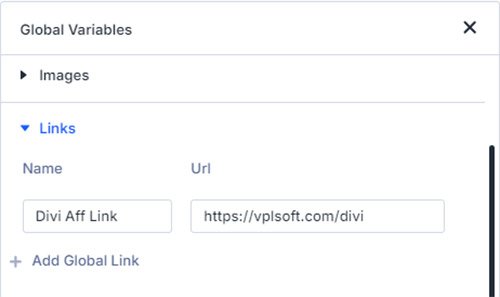
Chances are you have a number of links that you want activated all across the website, like maybe a Divi affiliate link if you're promoting it.
Again, you can always type them when you need a link, but Divi's dynamic fields allow also links to be set up inside Variable Manager. This way, dynamic fields will pick it up the moment you change and save them.
Colors
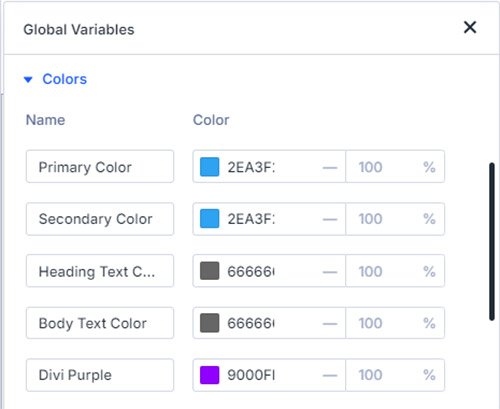
Colors are, like mentioned above, among the settings that need to be consistent across the website - they define the branding as well as the overall nature of the website. You define them according to your branding needs, and then use them where needed.
Fonts
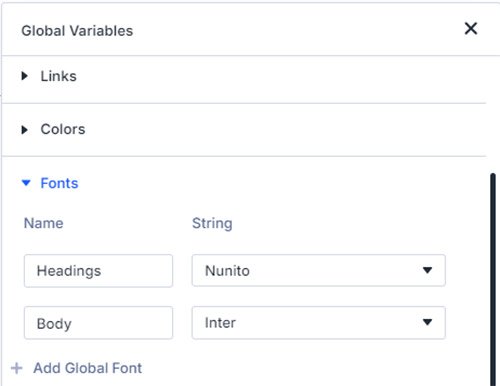
The last, but not the least, are the fonts.
Depending on your branding or the feeling of the website you want to achieve, you will need to choose appropriate fonts. There's much written about the rules (yes, there are rules, like with everything else), one of the pages I particularly like is FontPair. You'll find ideas of the best fonts to pair within your headings and body font settings, and there are some great ideas there.
Again, it all depends on what you want to achieve.
Variable Manager: Conclusion
Whatever you think of Divi's new Variable Manager, you will not be able to develop new websites consistently without it. It's not complete and it lacks a few settings. Most of all, it lacks the possibility to export the settings and use them on another website, which could save quite some time. But Divi 5 is only Beta right now, and I sincerely hope that this is part of the plan.
Before starting to create a new website, take some time and plan at least the most important settings - like brand colors and fonts. If you're working based on a supplied design, you have to follow the brangind anyway, and if you're also a designer, you will have to define them anyhow. Bake them in using Variable Manager and get them to save you time later on.
It's just common sense.




0 Comments